Automated UI Tests in Jetpack Compose Part 1: A New Era


We have been getting more and more excited about writing tests for our Android code with Jetpack Compose. The Android team has built a fantastic system for us to use, and I've found the experience of writing these tests a major improvement from using Espresso. This is why I'm writing this series post: to make myself (and others) better at writing automated UI tests for Android.
What is often overlooked in automated UI testing is that we can programmatically simulate user interaction, almost like we are simulating a real person. Is it an ideal approach to automate everything? No, of course not; there are some things that cannot be done with automatic testing. However, if done correctly and intelligently, automated mobile tests do have their place and will greatly help you ensure your app has high quality.
Getting Started
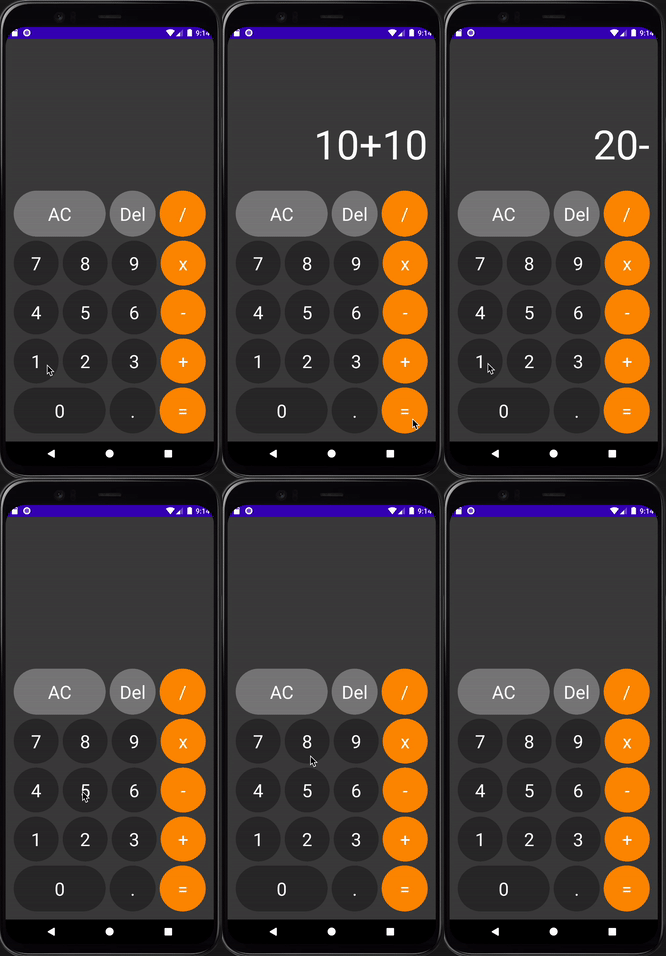
To learn about automated UI Testing with Jetpack compose, we are going to write tests for a Calculator app. This app simulates a typical calculator and its functions. You can download the starter code here. Run the app to know the expected behaviour. Try performing different functions like adding, subtracting, multiplying or dividing to see what happens.
Adding Dependencies
By default, a generated Android Studio project with Jetpack compose include some Jetpack compose testing dependencies. Every new project should include the following dependencies in `app/build.gradle` file.
testImplementation("junit:junit:4.13.2")
androidTestImplementation("androidx.test.ext:junit:1.1.3")
// Test rules and transitive dependencies:
androidTestImplementation("androidx.compose.ui:ui-test-junit4:$compose_version")
// Needed for createComposeRule, but not createAndroidComposeRule:
debugImplementation("androidx.compose.ui:ui-test-manifest:$compose_version")
And a default test running in the `defaultConfig`
testInstrumentationRunner "androidx.test.runner.AndroidJUnitRunner"Sync your `.gradle` file after making this changes.
Writing UI Test
UI Tests is an Instrumented test. In the context of Android development, Instrumentation tests let you test parts of an app that depend on Android, and its platform APIs and services.
Unlike local unit tests, UI tests launch an app or part of an app, simulate user interactions, and check whether the app reacted appropriately.
Creating your Test class
Instrumented tests live in the `androidTest` directory. It’s standard practice to put your test file under the same package structure as the file you’re testing. We need create to new class to hold our tests. Under your `androidTest` directory, create a new class called `CalculatorScreenTests`.

The createComposeRule function
The next thing you need to do after creating your test class is to define a composeTestRule using the `createComposeRule` function. This function defines how to launch your Composable UI and interact with it.
There are two ways to define your composeTestRule:
Using `createComposeRule()` - Use this if your tests doesn’t require a specific activity
Using `createAndroidComposeRule<ComponentActivity>()` - use this if your tests require a custom Activity. This is usually the case for tests where the compose content is set by that Activity, instead of via the test rule's setContent.
In our case we require the tests to run with our `MainActivity`. Add the following to your `CalculatorScreenTests`.
@get:Rule
val composeTestRule = createAndroidComposeRule<MainActivity>()
Setting up the Viewmodel
We use a viewmodel to manage UI state and access to the business logic. Using ViewModel this way is a recommended best practise as ViewModels survive configuration changes, so they have a longer lifetime than the Composition. They can follow the lifecycle of the host of Compose content—that is, activities, fragments, or the destination of a Navigation graph if you're using Compose Navigation.
Add the following code to your `CalculatorScreenTests`
private lateinit var viewModel: CalculatorViewModel

@Before
fun setup() {
  viewModel = CalculatorViewModel()
}
Launching your Activity
When testing your UI, the first thing you need to make sure is that your can actually launch it. A launch test is a great first test and makes sure your app, or a specific screen, can start up without crashing. That’s important!
A test name should be short and clear, focusing on what the test does. To achieve that, avoid using the word "test" in your test name. Write a test that launches the MainActivity in your test class:
@Test
fun add_two_numbers_passes() {
   composeTestRule.setContent {
    CalculatorPrepTheme {
        CalculatorScreen(
            state = viewModel.state,
            onAction = viewModel::onAction
        )
    }
  }
}
This uses the `composeTestRule` to set the UI content of the test in the `MainActivity` to the `CalculatorScreen` composable. Build and run the test function you just added. You can click on the green play button beside the test name to run it. You should get an output similar to that below.
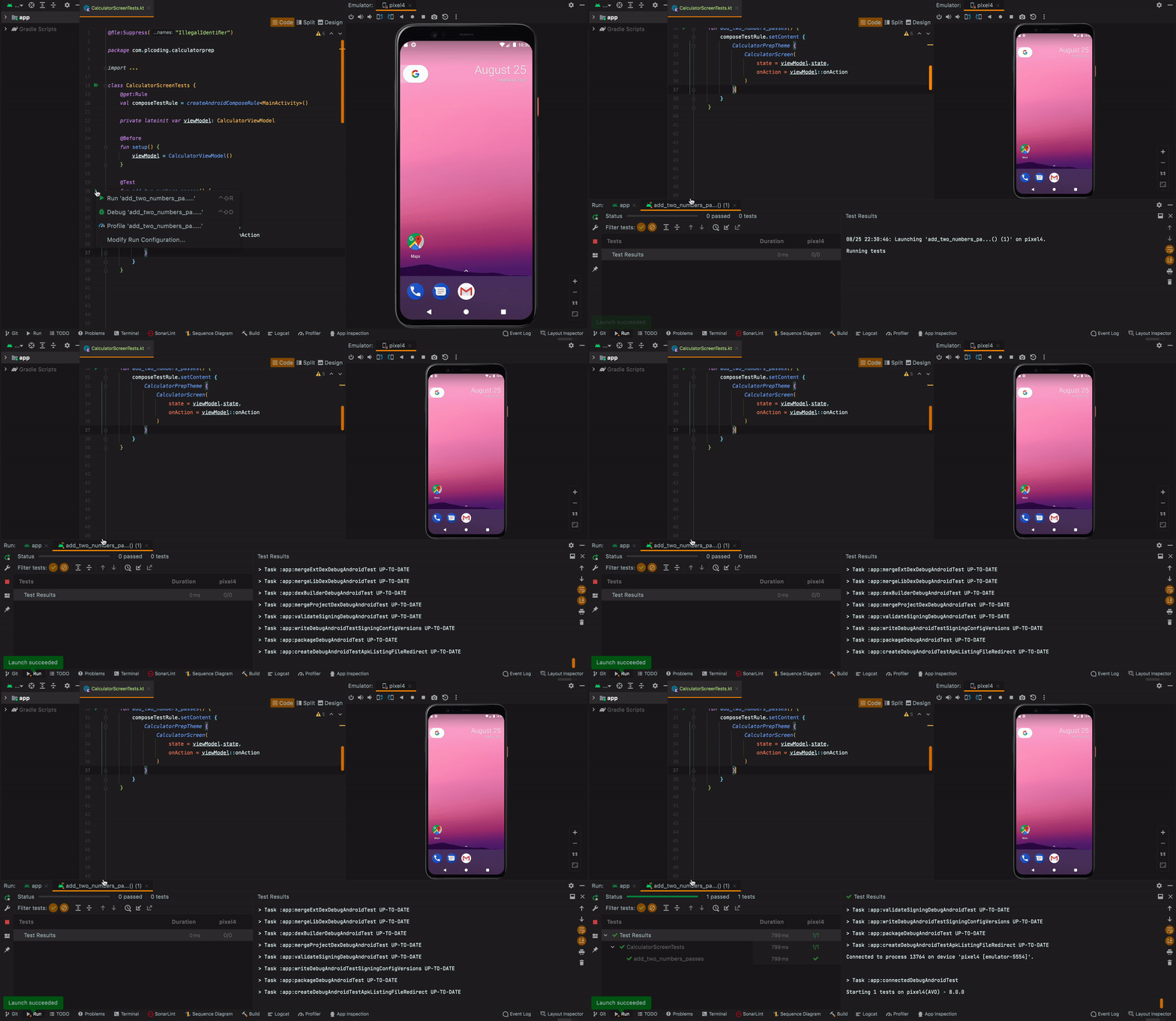
It’s nice to see your test launch and pass, Isn’t it 🙂.
Interacting with UI Components
Now that you know how to launch your UI, you can start interacting with the UI components. There are three main ways to interact with elements:
Finders let you select one or multiple elements (or nodes in the Semantics tree) to make assertions or perform actions on them.
Assertions are used to verify that the elements exist or have certain attributes.
Actions inject simulated user events on the elements, such as clicks or other gestures.
Some of these APIs accept a SemanticsMatcher to refer to one or more nodes in the semantics tree.
Add the following test to verify that when the screen is opened, perform addition between two numbers.
//1
composeTestRule.onNodeWithText("2")
    //2
    .performClick()
composeTestRule.onNodeWithText("0").performClick()
composeTestRule.onNodeWithText("+").performClick()
composeTestRule.onNodeWithText("1").performClick()
composeTestRule.onNodeWithText("0").performClick()
composeTestRule.onNodeWithText("=").performClick()
//3
composeTestRule.onNodeWithText("30.0").assertExists()
Here you:
Identify UI components using the text property. - Finders
Perform an action on it - Actions
Verify that correct result is displayed on the screen - Assertions
UI components can be accessed as nodes through the composeTestRule. A common way to do this is to access a node that contains a particular text with the onNodeWithText() method.
This is a pattern you’ll see over and over again in writing automated UI tests in Jetpack compose: Finding views and performing checks and actions on them.
Build and run your tests.

Writing more stable tests with TAGS
Jetpack compose API makes it easy to identify UI components easily. As tempting as it is to want to go along with the flow. Tags provide a better way to identify UI components and not be worried about changes to that component in future, this increases incredibly the stability of your test.
Lets add a test tag in a UI component:
CalculatorButton(
    symbol = "2",
    color = MediumGray,
    modifier = Modifier
        .aspectRatio(1f)
        .weight(1f)
        // Add a test tag
        .testTag("test-button-two")
) {
    onAction(CalculatorAction.Number(2))
}
And access the test tag from our UI test:
@Test
fun subtract_two_numbers_passes() {
    composeTestRule.setContent {
        CalculatorPrepTheme {
            CalculatorScreen(
                state = viewModel.state,
                onAction = viewModel::onAction
            )
        }
    }
    composeTestRule.onNodeWithTag("test-button-two").performClick()
    composeTestRule.onNodeWithText("0").performClick()
    composeTestRule.onNodeWithText("-").performClick()
    composeTestRule.onNodeWithText("1").performClick()
    composeTestRule.onNodeWithText("0").performClick()
    composeTestRule.onNodeWithText("=").performClick()
    composeTestRule.onNodeWithText("10.0").assertExists()
}
Where to Go From Here
Jetpack Composer has made it easier for Android developers to write tests. Are you looking forward to practicing more. I think it would be helpful to write tests for other mathematical operations.
You can also keep learning in this places.
Now in Android App - is a fully functional Android app built entirely with Kotlin and Jetpack Compose. It follows Android design and development best practices and is intended to be a useful reference for developers.
Testing your Compose layout documentation.
I hope you found this helpful! If you have any comments or questions, feel free to share.